
OZZI user guide
Shelly releases new firmware versions from time to time, so it’s worth keeping your devices up to date: updates improve performance and security. This OZZI guide first explains how to tell that an update is available, and then how to install it in the Shelly Smart Control app, whether it’s for a smart energy meter, a smart switch or any other device in your smart home.
The update takes a few minutes. During that time, don’t disconnect the device from power and don’t close the app.
1. How to tell there’s an update 

When a new version is available, the update icon (two arrows in a circle) appears in the top bar of the device card.
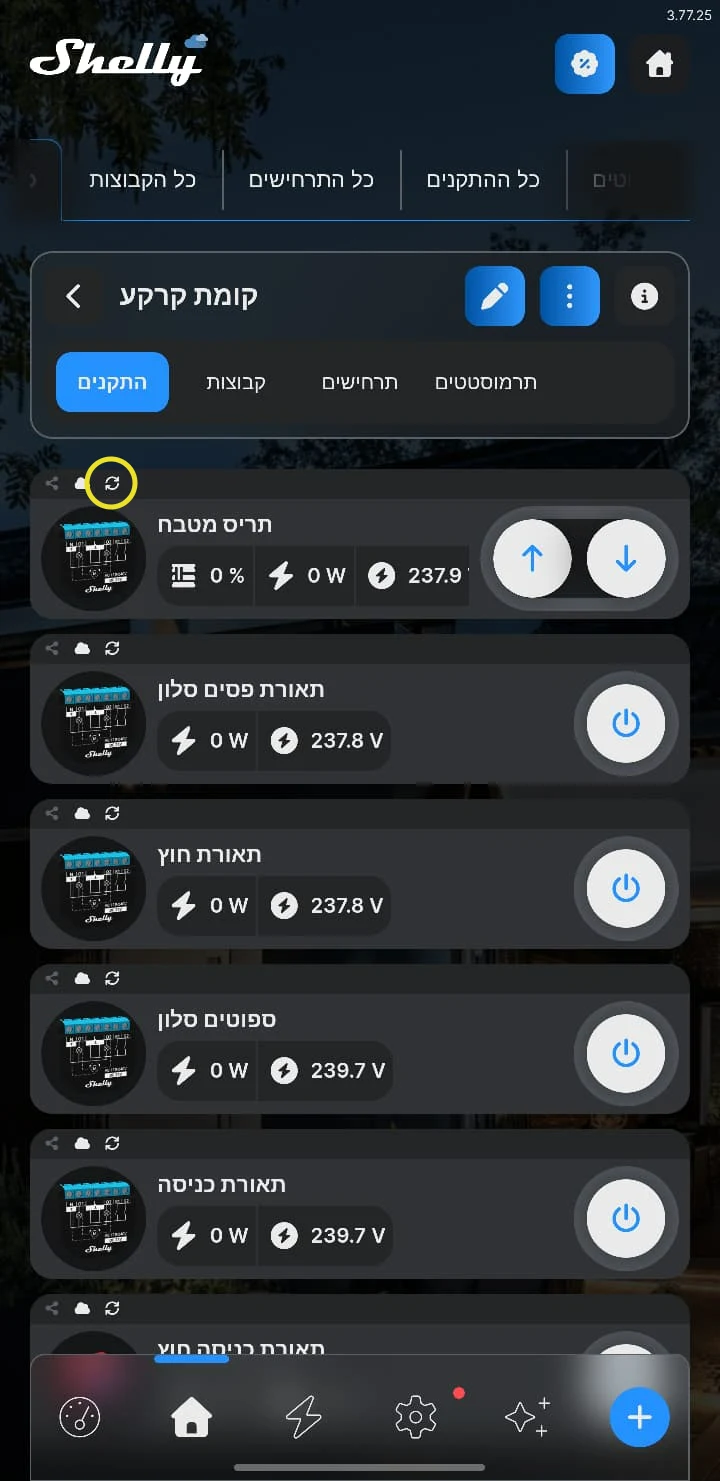
2. Updating a single device
This is the usual method when the device is already connected to the app.
1
First, open Shelly Smart Control and select the device.
2
Next, tap the settings icon (the gear) at the bottom of the side menu.
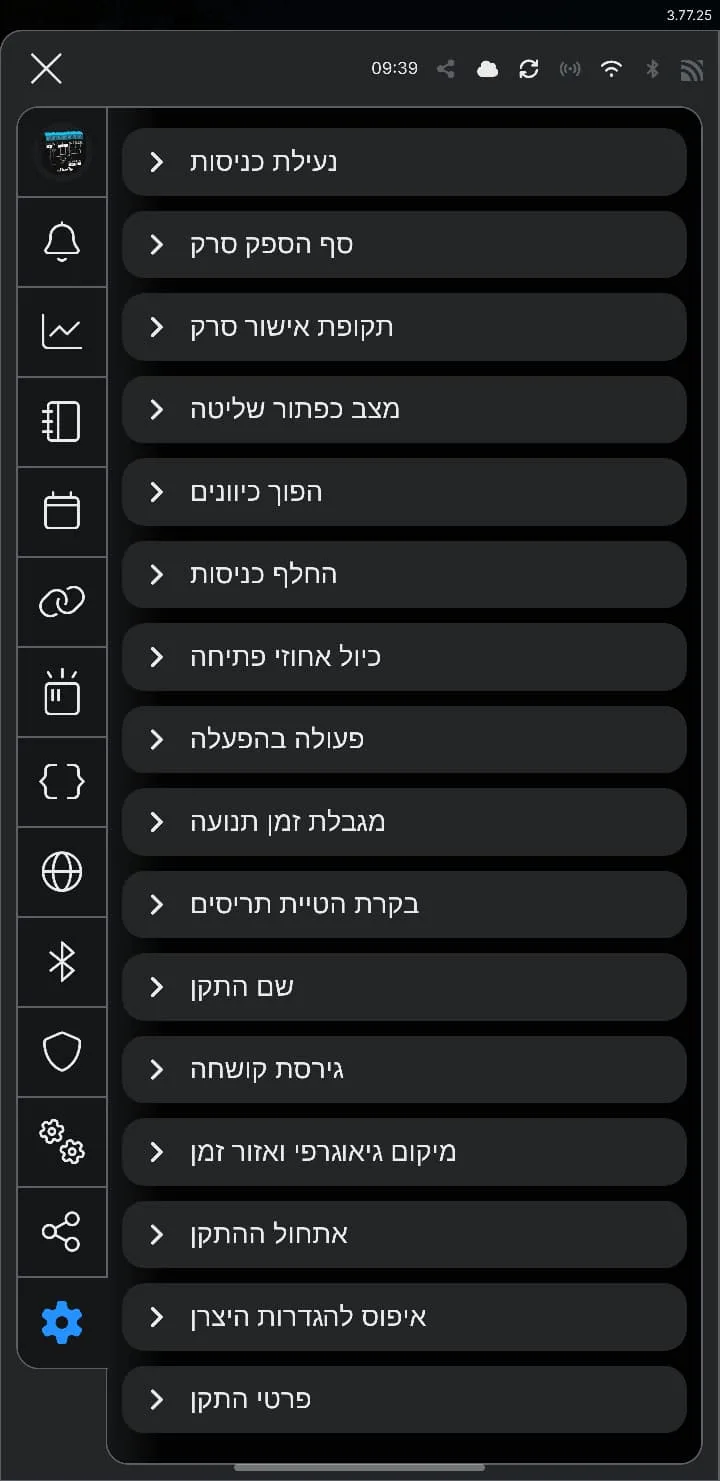
3
Then choose “Firmware Version”. The app shows the “Current Firmware Version” and the “Available Stable Version”.
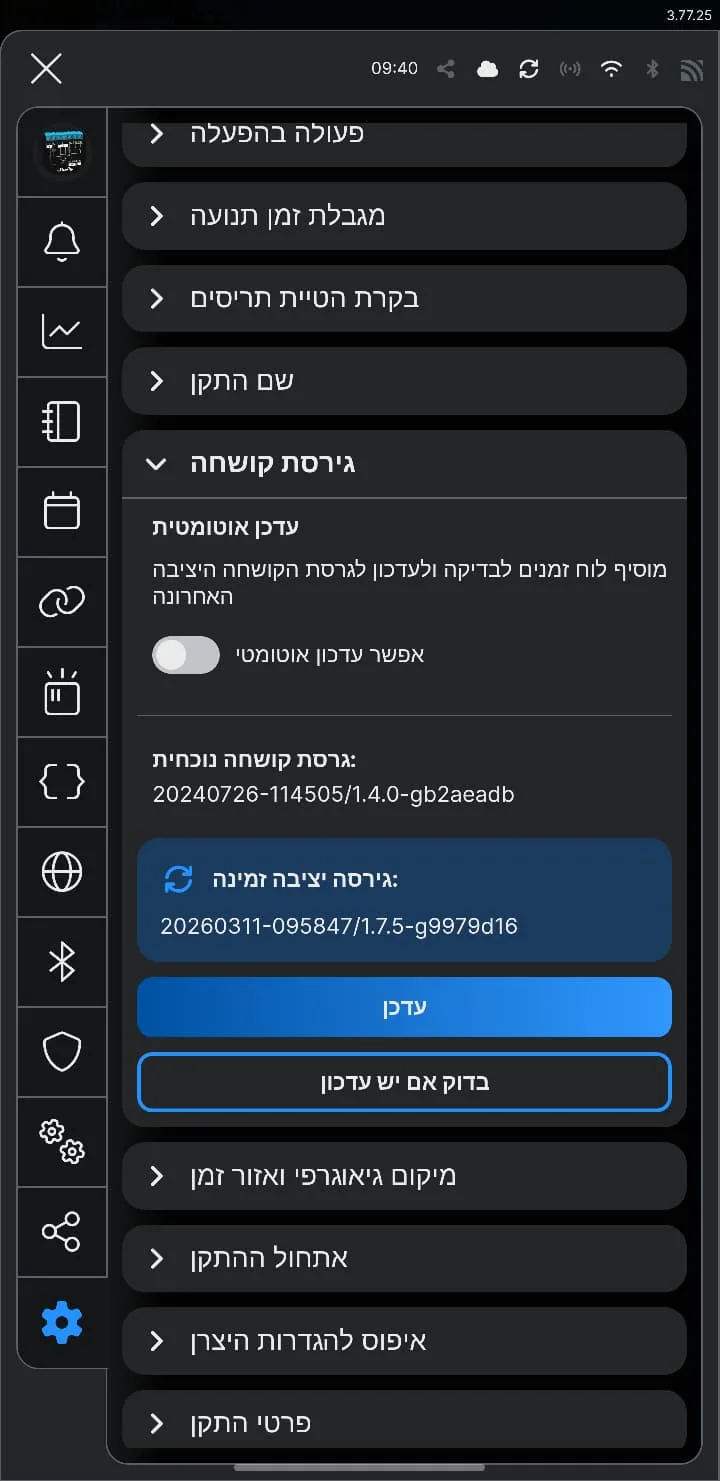
4
Next, tap “Update”.
5
Finally, wait for the device to finish updating and restart.
That’s it. The device is up to date, so the update icon disappears from its card. On some battery-powered devices, press the button on the device to “wake it up” and apply the update.
Optional
On the same screen you can also turn on “Enable Automatic Update”, so new stable versions install by themselves.
3. Updating all devices at once
Especially handy when several devices are waiting for an update.
6
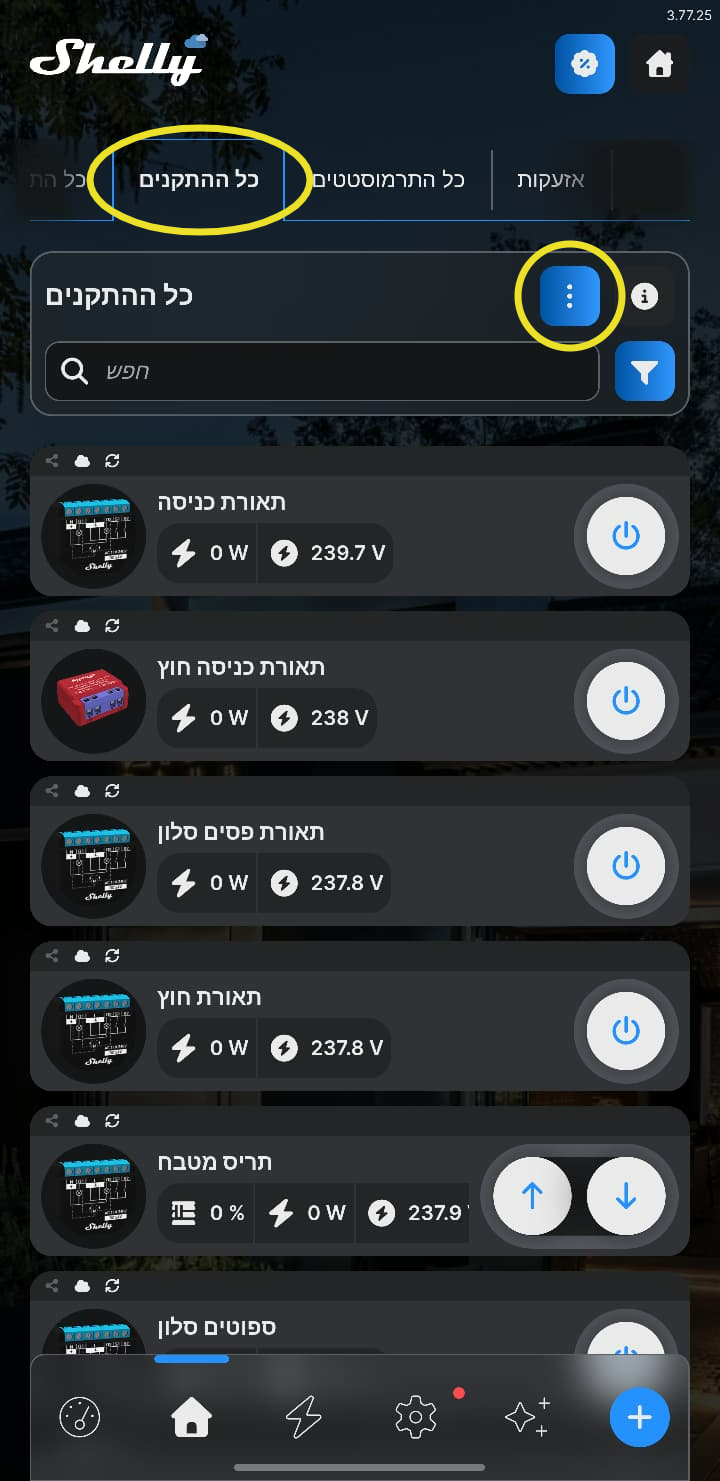
First, select the “All Devices” tab.
7
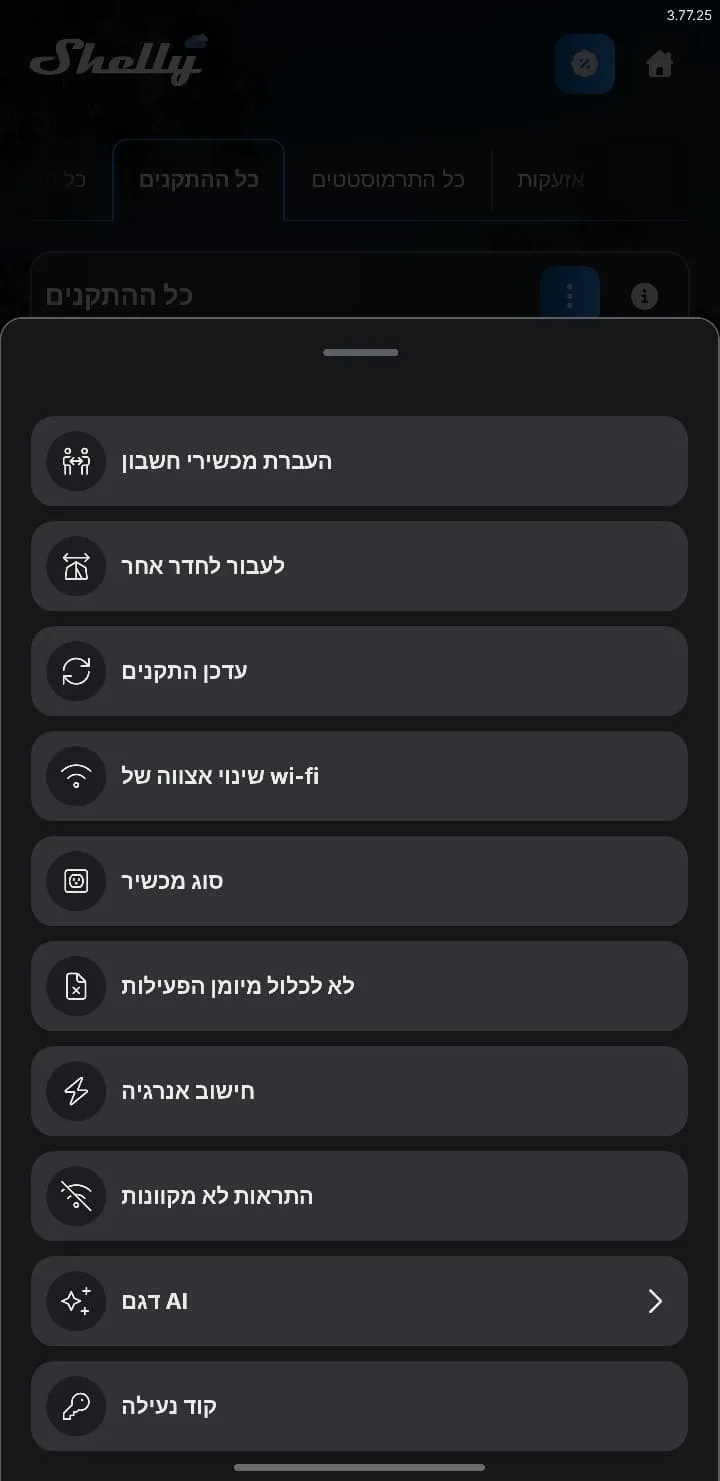
Then tap the three dots and choose “Update Devices”.
8
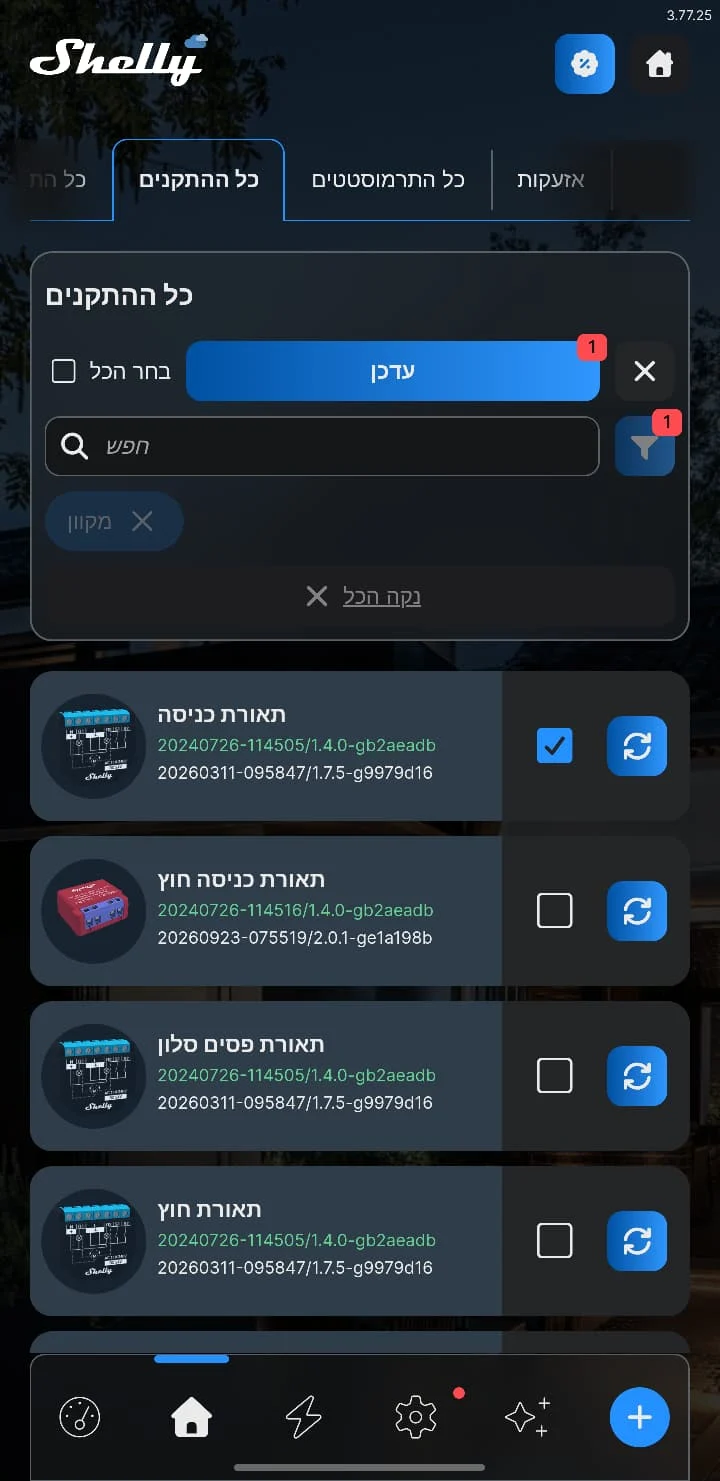
Finally, tick “Select All” (or pick the devices to update yourself) and tap “Update”.
If a device won’t connect after the update, go to the guide to resetting and reconnecting a device.
To sum up: up-to-date firmware keeps your smart home stable and secure, so smart switches respond on time and smart energy meters measure accurately, helping you manage and reduce your electricity use. This guide was prepared by OZZI, the official distributor of Shelly smart home products in Israel.